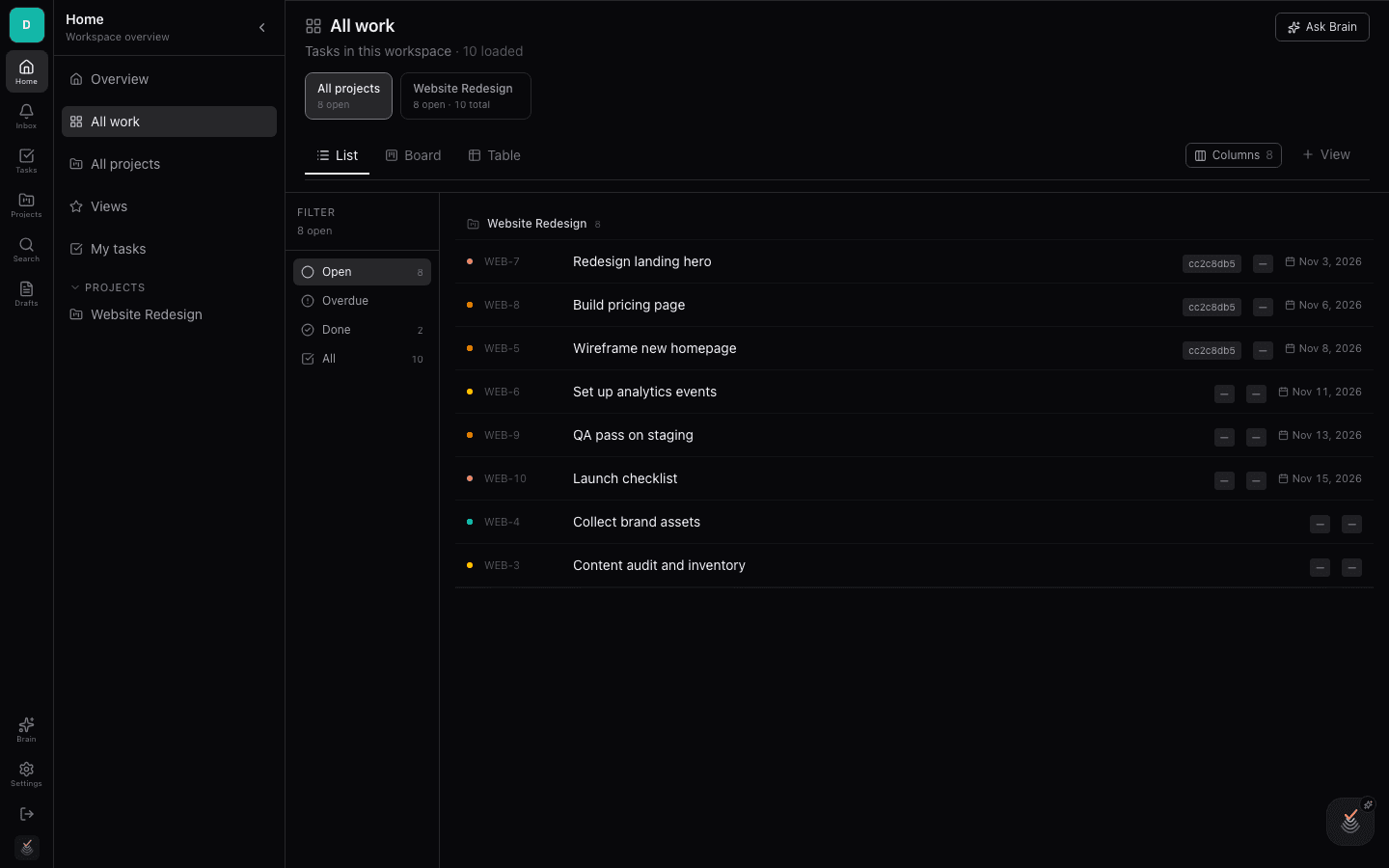
Your workspace
The workspace is the shell you live in. A left rail gives you one-tap access to the main sections, a Brain button sits at the bottom of the rail, and your avatar signs you out or opens account settings.
This chapter tours each rail section so you know where things live before diving into projects.
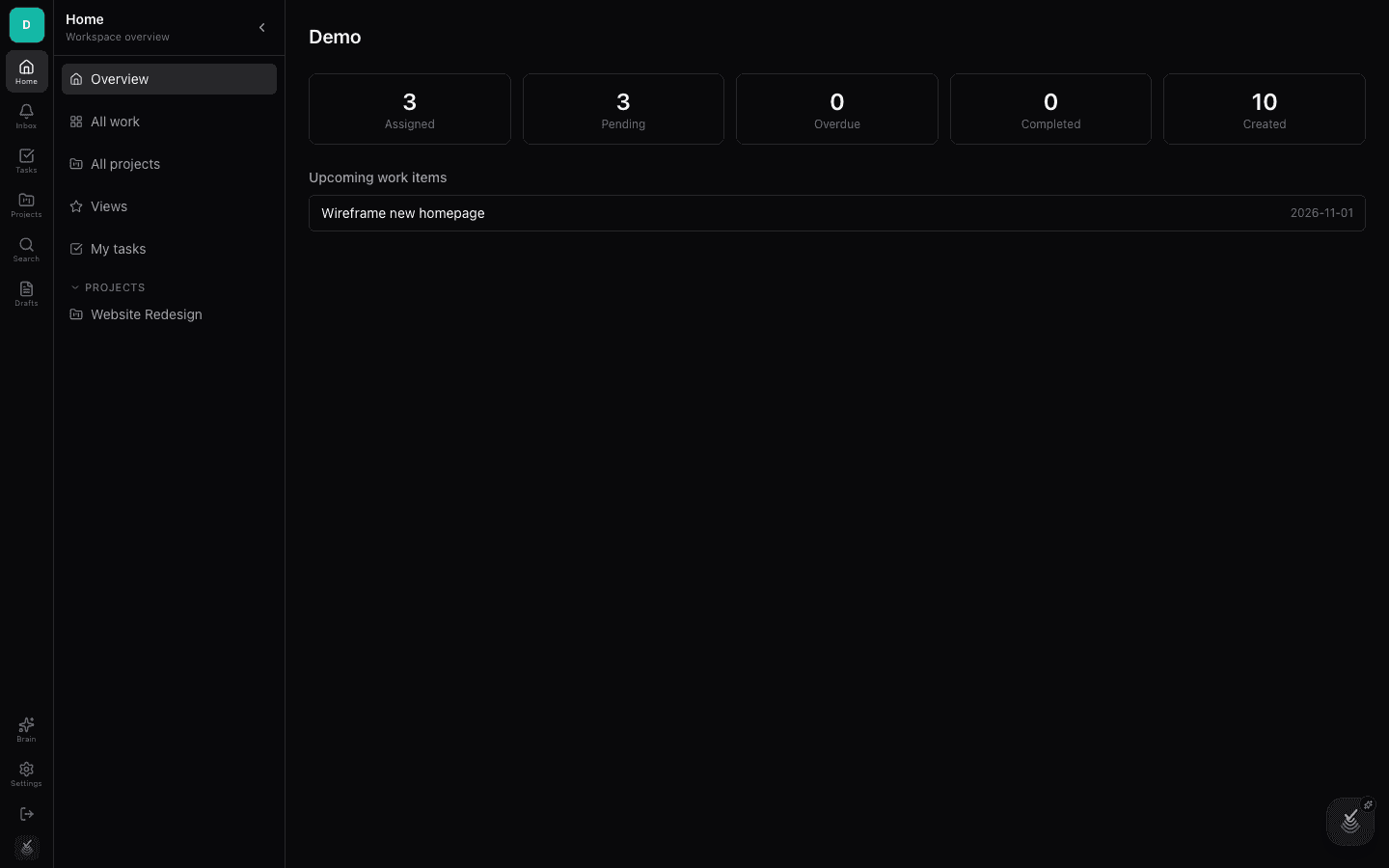
Home
Home is the workspace landing screen. It surfaces what needs attention first — recent work, assigned items, and quick links into projects — so you can orient yourself in seconds after signing in.
Use the workspace name at the top of the rail to switch between workspaces you belong to.
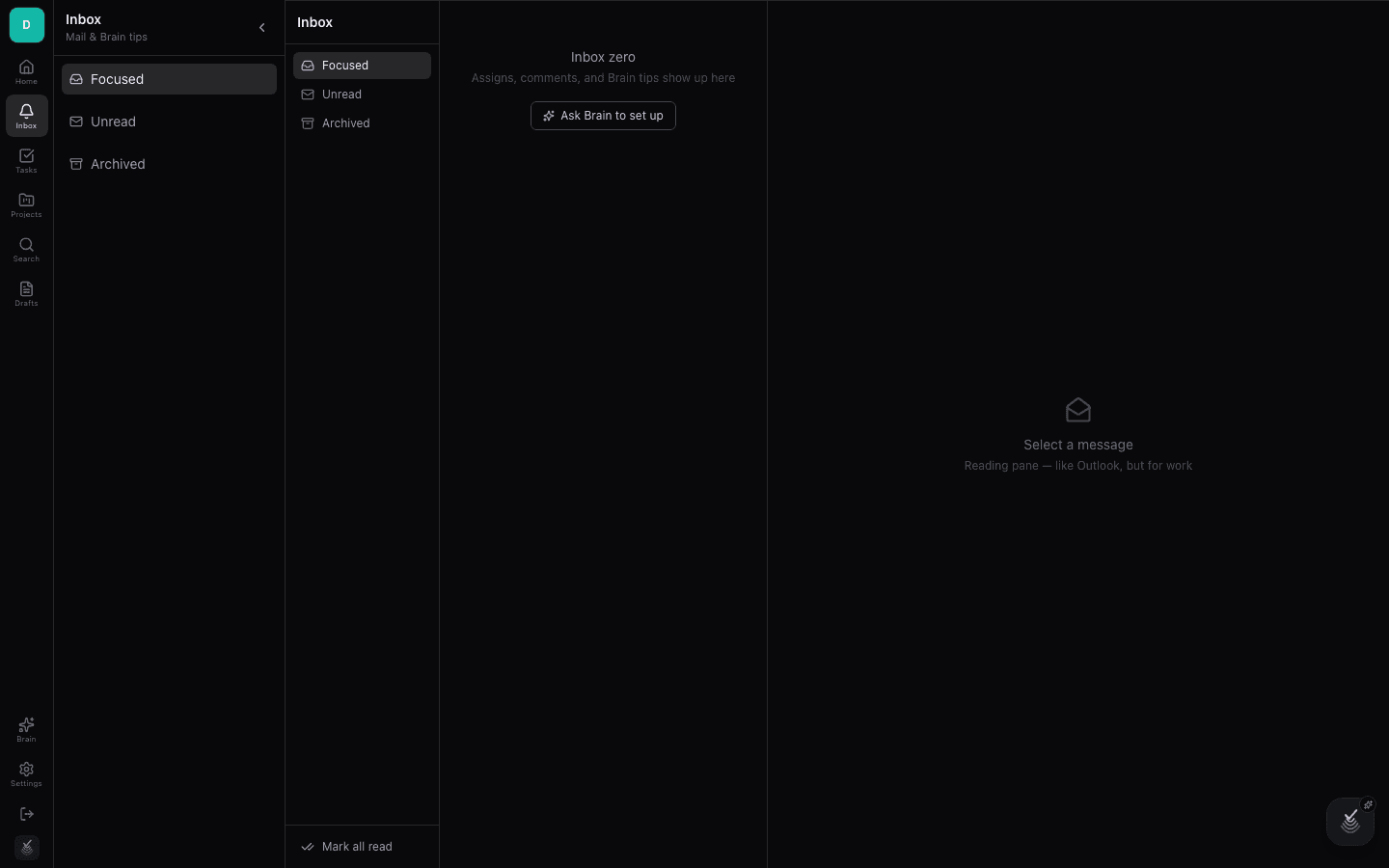
Inbox
Inbox collects your notifications: mentions, assignments, comment replies, and Brain tips worth acting on. A badge on the rail icon shows the unread count.
Open an item to jump straight to the issue, page, or comment that triggered it.
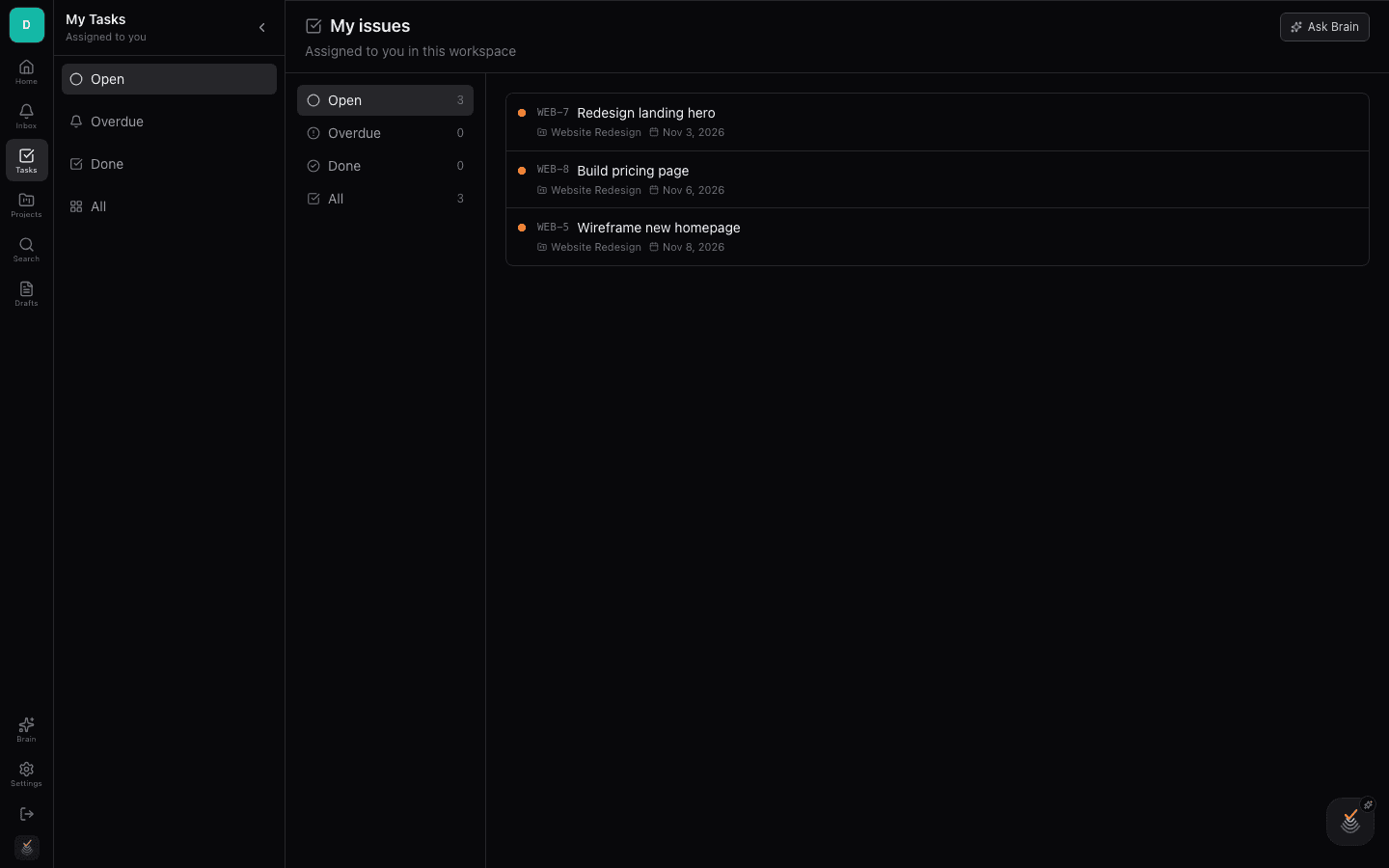
My Tasks
My Tasks is your personal queue: every work item assigned to you across all projects in the workspace, gathered in one place. Group, sort, and filter it like any other list to plan your day.
Updating an item here — state, priority, estimate — writes straight back to its project.
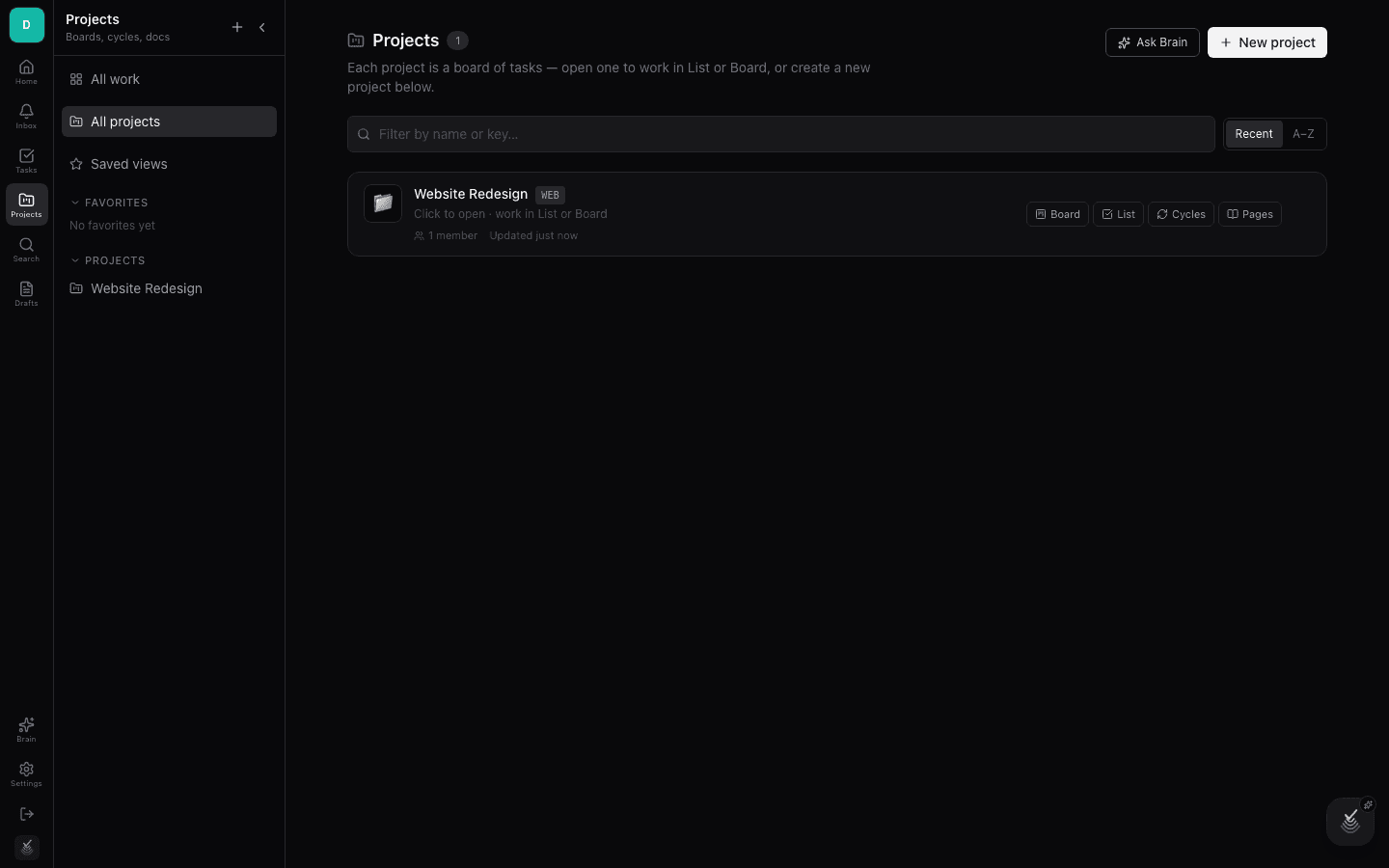
Projects
The Projects section lists every project in the workspace with its status and activity. Click a project to open its work items, docs, sheets, and other tabs.
Create a new project here when a piece of work deserves its own space — a client engagement, a product line, or an internal initiative.
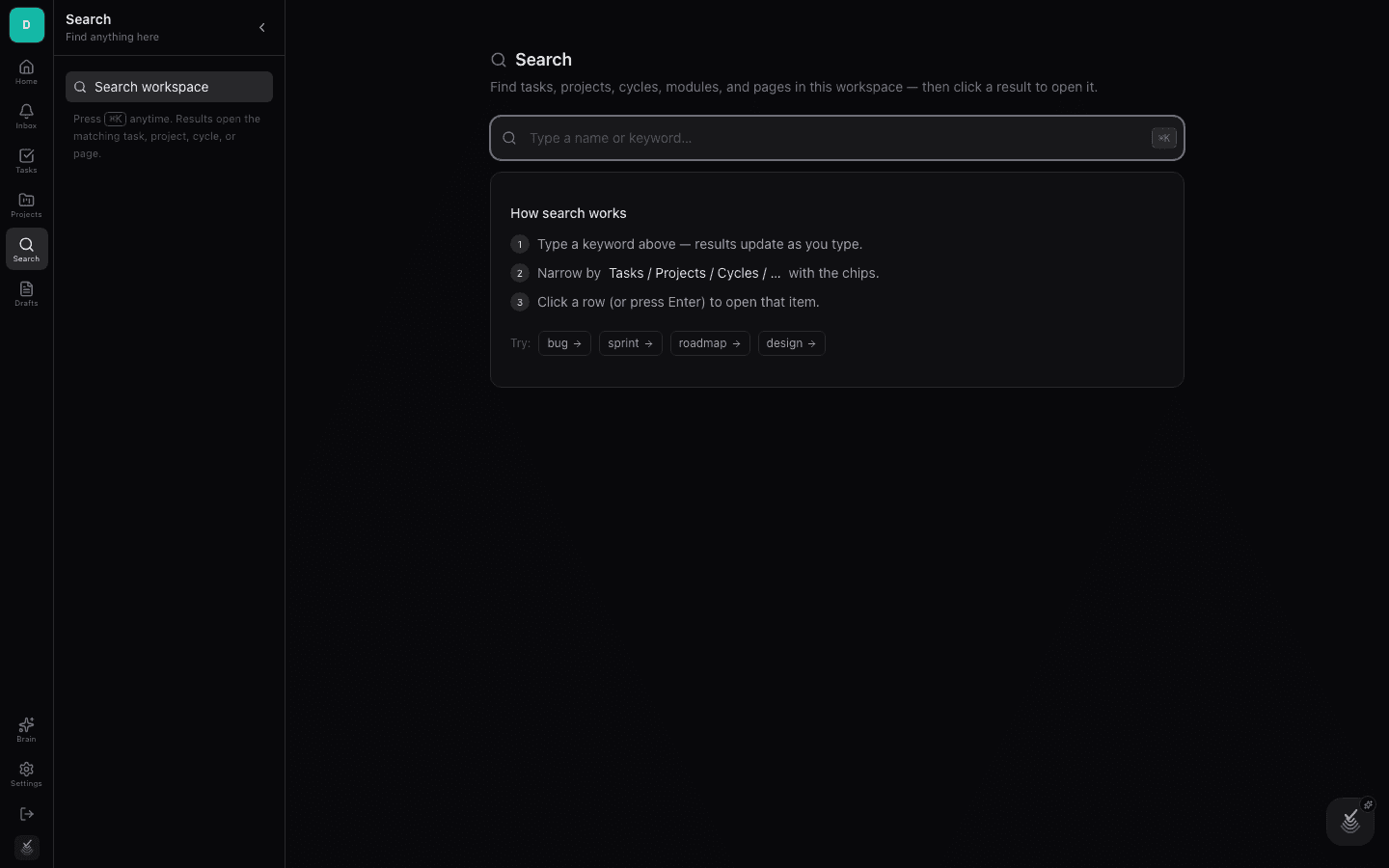
Search
Search looks across the whole workspace — issues, pages, sheets, forms, and more — from one box. Use it when you remember a phrase or a title but not where it lives.
Results link directly to the matching record, so search doubles as a quick-jump navigator.
Drafts and Overview
Drafts is a scratchpad for memos and notes that are not ready to become pages in a project. Jot things down freely; promote the keepers into a project page later.
The Overview screen rolls the workspace up into a single dashboard — workload, progress, and activity across projects — useful for leads who want the thirty-thousand-foot view.