Getting started
DoneNest is a shared workspace for projects, docs, sheets, slides, forms, designs, and an AI assistant called Brain. This chapter walks you from the marketing site to a working workspace in a few minutes.
Everything in this guide assumes the English interface on the public site. If your team invited you, skip to signing in — your workspace is already waiting.
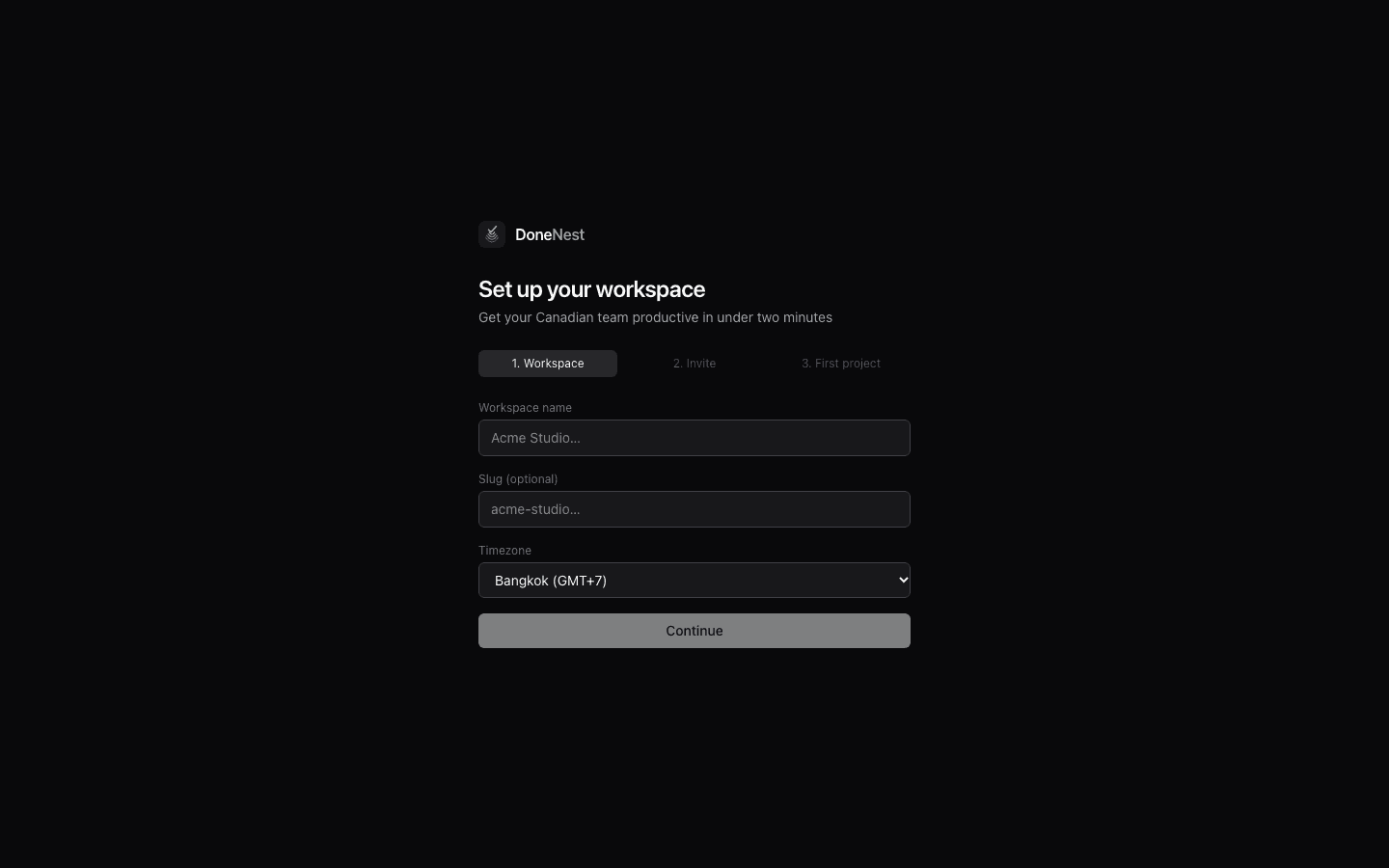
Open the DoneNest home page
Go to donenest.com. The home page explains the product, shows live feature demos, and links to pricing and use cases. The main actions are in the header: Sign in if you already have an account, or Start 14-day trial to create one.
You can also open the demo straight from the header — no account needed.
Create an account or sign in
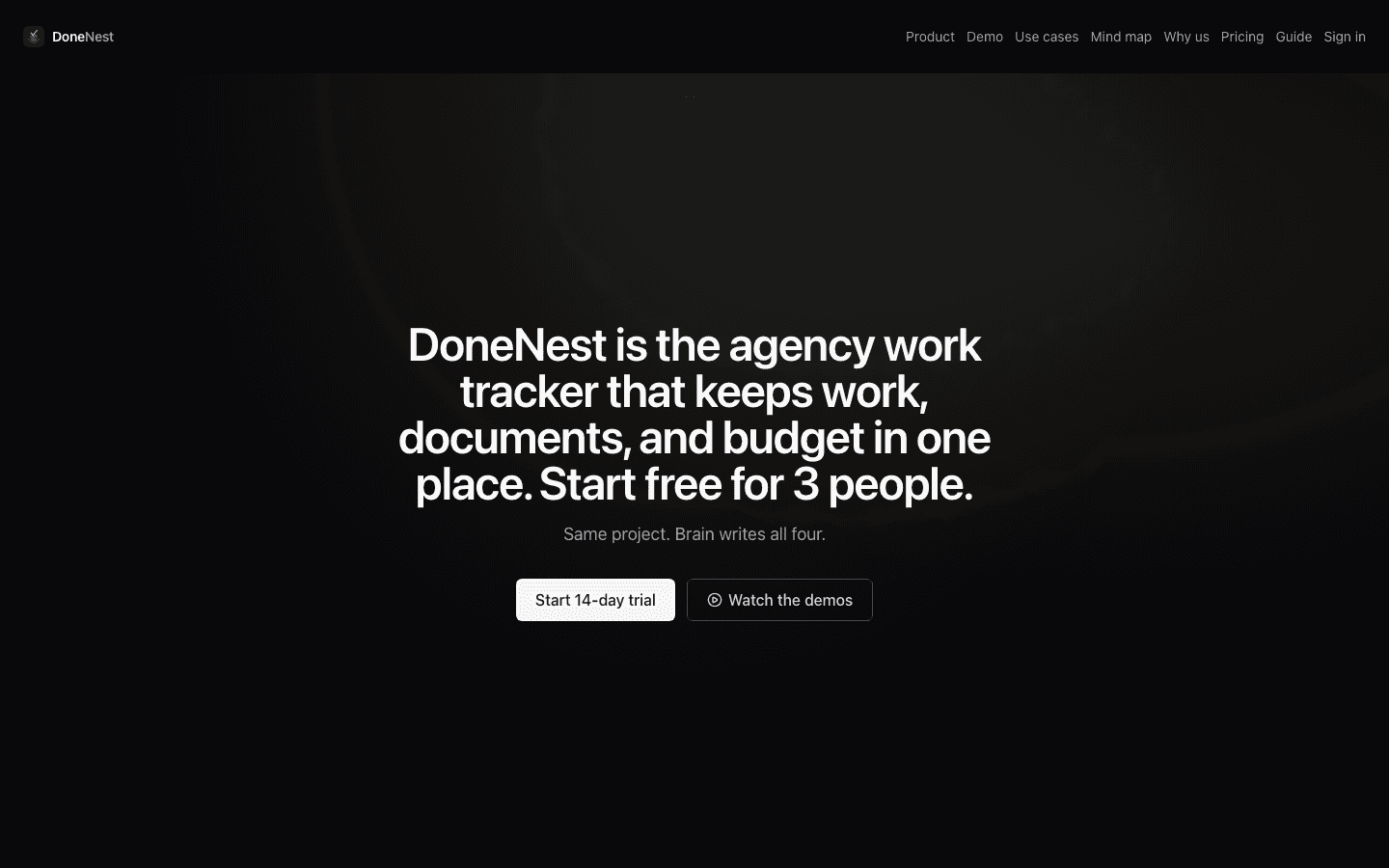
Choose Start 14-day trial to register with your email, or use one of the OAuth buttons to sign in with an existing identity provider. If you already belong to a workspace, Sign in takes you straight to it.
After authenticating you land inside your workspace. If it is your very first visit, DoneNest asks you to create a workspace first.
Try the demo before signing up
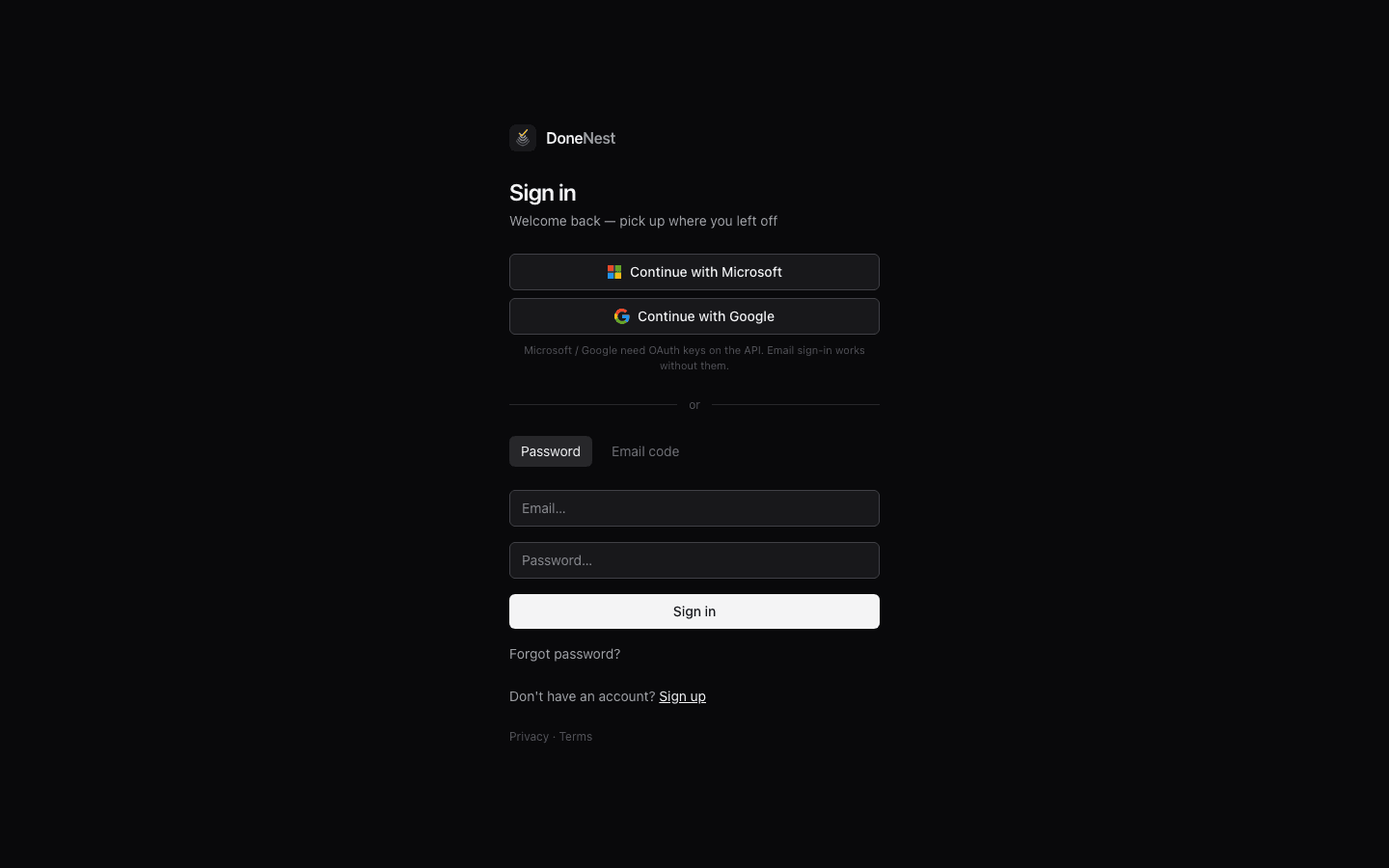
The /try page spins up a temporary demo workspace. Describe a project in your own words — for example a product launch or a client retainer — and Brain generates a real project with tasks, docs, and views you can click through.
Demo workspaces are throwaway: nothing you do there affects a real account, and they expire on their own. It is the fastest way to feel how DoneNest works before committing.
Create your first workspace
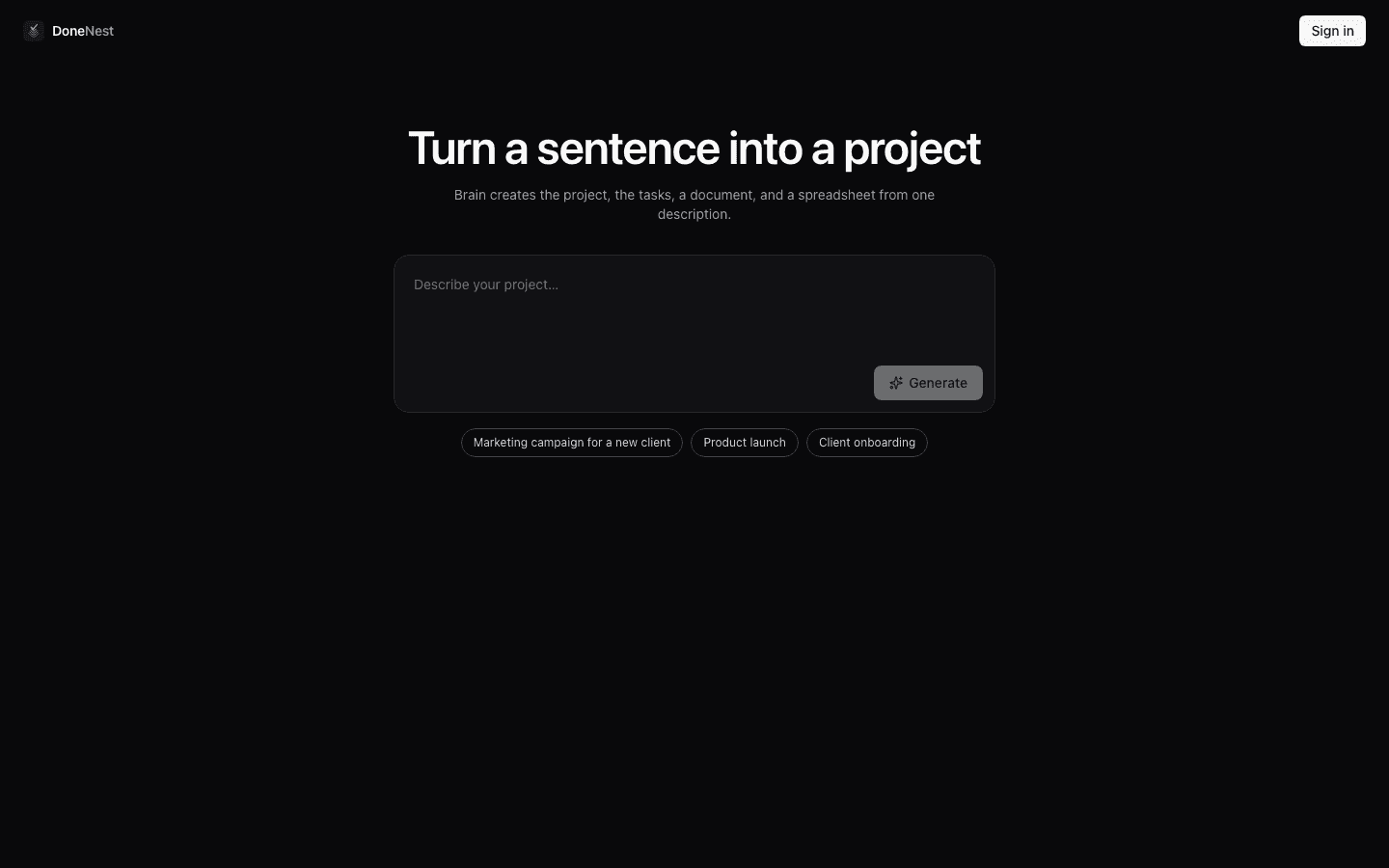
A workspace is the top-level container for your team: it holds projects, members, settings, and billing. Pick a clear name — the workspace slug becomes part of every URL, like donenest.com/acme.
Once created, you land on the workspace Home screen. From here the left rail takes you to Inbox, My Tasks, Projects, Search, Drafts, Brain, and Settings — the chapters that follow cover each area.